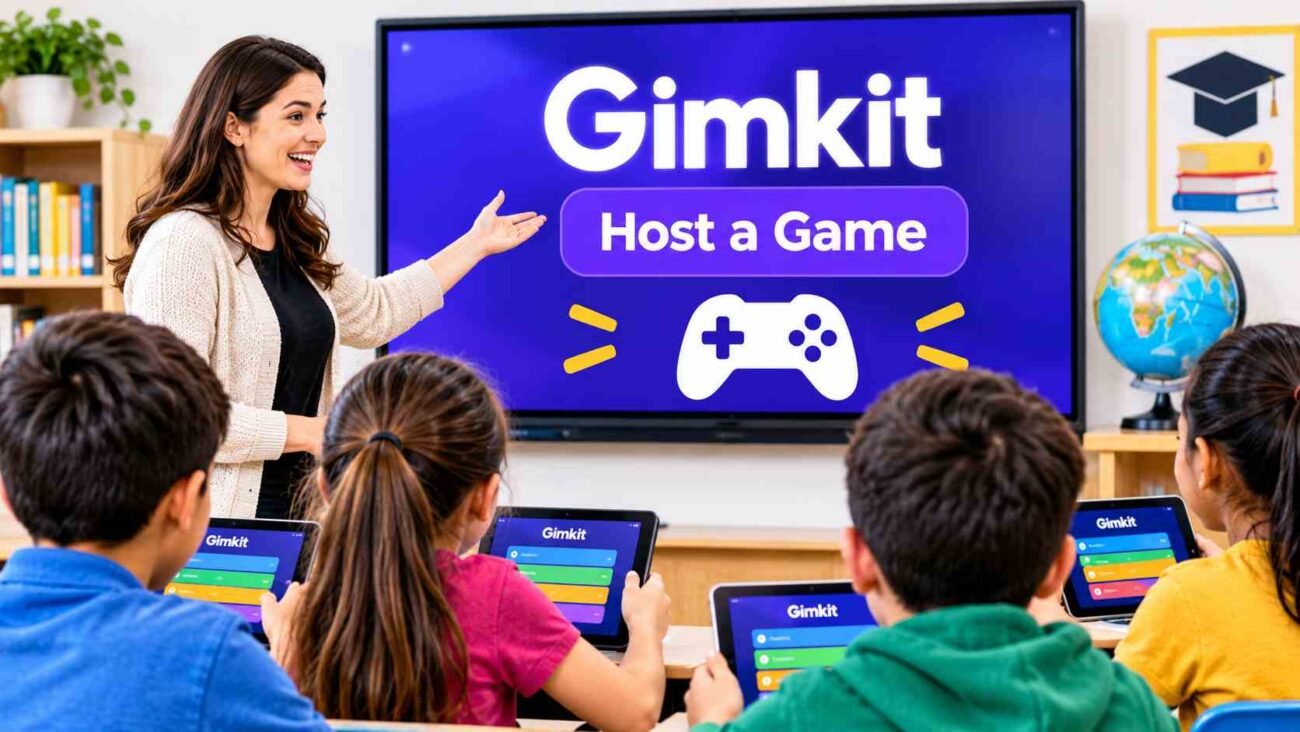
Gimkit Host is a useful feature for teachers who want to make classroom learning more interactive and enjoyable. It allows users to create live game sessions, choose different game modes, and invite students to participate using a game code or joining link. Whether you are a teacher preparing a lesson review or a student learning how classroom games work, understanding Gimkit Host can help you get started easily. In this guide, we will explain how to access Gimkit Host, start a live game, share the joining code, and manage common hosting problems.
What Is Gimkit Host?
Gimkit Host is the feature that allows teachers or game organizers to start and manage live learning games on Gimkit. It gives the host control over the game session while students participate by answering questions on their own devices. Teachers can choose a question set, select a game mode, adjust the available settings, and launch a session for their class. Once the game starts, Gimkit provides a join code or link that students can use to enter the session.
The main purpose of Gimkit Host is to make classroom learning more interactive and enjoyable. Instead of simply answering questions on paper, students take part in a game-based activity where they answer questions and work toward the game’s objectives. Teachers can use it for reviewing lessons, practicing important topics, or checking how well students understand a subject. Whether you are hosting a short classroom activity or a full review session, Gimkit provides tools to organize the experience and keep students involved.
How to Access Gimkit Host?
To access Gimkit Host, open the official Gimkit website and sign in to your account. If you are a new user, you will need to create an account before using the hosting features. After signing in, go to your dashboard, where you can find your available kits and options for starting a game. Choose a question set that you want to use for your classroom activity. You can select an existing kit or create a new one based on the subject you are teaching.
Once you have selected a kit, look for the option to play or host a game. Gimkit will take you through the available game modes and settings before you launch the session. Choose the options that suit your class and continue to the hosting screen. From there, you can start the game and share the joining details with your students. The process is straightforward, even for teachers who are using Gimkit for the first time.
How to Host a Gimkit Game Step by Step
Hosting a Gimkit game is simple when you follow the correct steps. First, visit the Gimkit website and log in to your teacher or host account. Open your dashboard and select the kit you want students to play. A kit contains the questions that participants will answer during the activity. You can choose a subject-related kit from your collection or prepare a new one if you want to focus on a particular lesson. After selecting your kit, click the play option to see the available game modes.
Next, choose a game mode and review its settings before starting the session. Depending on the selected mode, you may be able to adjust options such as the game duration or other available gameplay rules. When everything is ready, launch the game. Gimkit will display the joining information that students need to enter the session. Share the game code or joining link with your class and wait for participants to connect. Once everyone is ready, begin the activity and let students answer the questions.
How to Choose a Gimkit Game Mode?
Choosing the right game mode can make a big difference in how students enjoy a Gimkit session. After selecting your kit, Gimkit provides available game modes that offer different ways to play. Some modes focus on individual progress, while others introduce team-based activities or special gameplay challenges. The best option depends on your lesson goals, the number of students, and the type of classroom experience you want to create. For example, a competitive mode may work well when students enjoy individual challenges, while a team-based mode can encourage cooperation.
Before choosing a mode, consider the age group and experience level of your students. If your class is new to Gimkit, a straightforward mode can help everyone understand the rules without confusion. For a lesson review, you may prefer a mode that keeps students engaged while they practice the questions. Also, check the available settings because some options can differ depending on the selected mode and account plan. Taking a moment to review these details can help you choose a suitable activity for your classroom.
How to Get and Share a Gimkit Game Code?
When you host a live Gimkit game, the platform provides joining information that allows students to enter your session. To get the game code, select your kit, choose a game mode, and proceed through the hosting process until the lobby or joining screen appears. The code is displayed on the host screen when the session is ready for participants. Students can use this code to find and join the correct game. You do not need to create a separate code yourself because Gimkit generates the joining details for the session.
Sharing the code is also easy. You can display it on a classroom screen, write it on the board, or communicate it to students through your usual classroom communication method. Depending on the joining options provided, you can also share the game link so students can access the session more directly. Make sure everyone uses the code or link for the current game because joining details can change when you start another session. If a student enters an incorrect code, ask them to check the characters and try again.
How Can Students Join a Gimkit Game?
Students can join a Gimkit game using the code or link shared by the host. First, they need to open the Gimkit joining page or follow the game link provided by their teacher. If they are using a code, they should enter it in the required field and continue with the joining process. Depending on the session settings, students may also need to enter a name before entering the game. They should make sure that they have joined the correct session before the teacher starts the activity.
After entering the game, students will see the available instructions and can get ready to participate. The host can check the lobby to see which students have joined before starting the session. If someone cannot enter, they should check whether the code is correct, whether the game is still active, and whether their internet connection is working properly. Students should avoid sharing an old code from a previous session because it may no longer work. Once the host starts the game, participants can answer questions and follow the rules of the selected mode.
What Can You Control as a Gimkit Host?
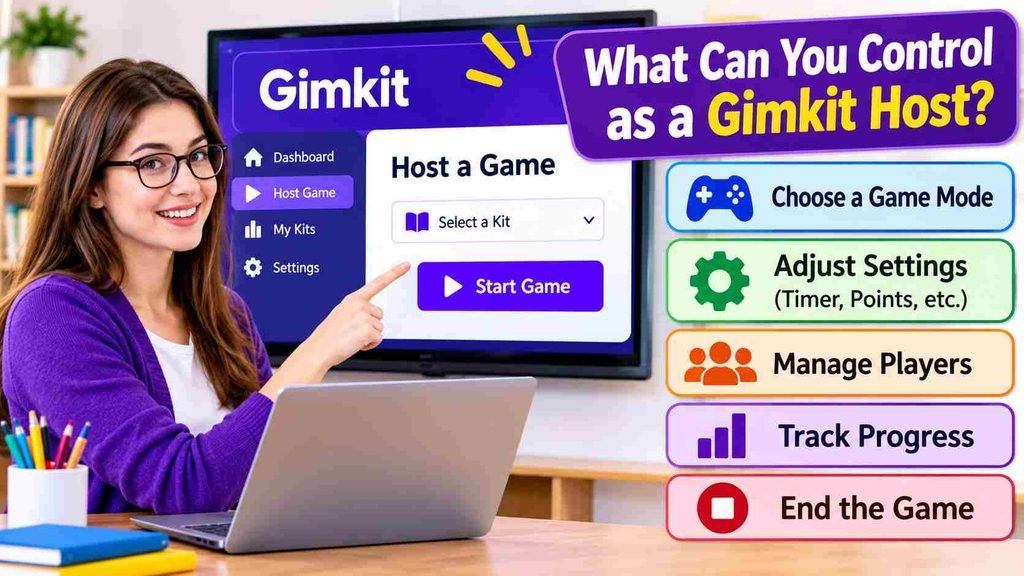
Gimkit Host gives organizers control over several parts of a live game session. Before starting, the host can select the kit, choose from the available game modes, and review the settings offered for that mode. These settings help teachers prepare an activity according to their classroom needs. Depending on the mode, options may include gameplay rules, time limits, and other session preferences. The host can also share the joining details and monitor the lobby while students enter the game.
During the activity, the host manages the session using the controls available for the selected game mode. These controls can differ depending on how the game is designed. Teachers should review the options before launching a session so they understand how the activity will work. This makes it easier to organize the game and avoid interruptions while students are participating. The host can also use the session to encourage participation and keep the classroom focused on the learning activity.
Is Gimkit Hosting Free?
Gimkit offers a free account option, so users can explore the platform and access some of its classroom gaming features without paying for a subscription. However, free access does not necessarily include every feature, game mode, or hosting option. Some features may have restrictions or require a paid plan. This means the hosting experience can depend on the type of account you are using and the features currently included in your plan.
If you are planning to host Gimkit games regularly, it is a good idea to review the available plans before choosing one. Check which game modes, hosting features, and other tools are included in each option. Teachers who only want to try a few classroom activities may find the free option useful, while those who need additional features may consider a paid subscription. Since plans and features can change, always check the current account details before making a decision.
Common Gimkit Hosting Problems and How to Fix Them
Sometimes, users may experience problems while trying to host a Gimkit game. One common issue is difficulty signing in or opening the dashboard. This can happen because of an incorrect password, browser problems, or an unstable internet connection. Start by checking your login details and refreshing the page. If the problem continues, try opening Gimkit in an updated browser or clearing the browser cache. You should also make sure your internet connection is stable before launching a live session.
Another common problem occurs when students cannot join a game. In this situation, check whether you have shared the correct code or joining link and whether the session is still active. If the code does not work, share the current joining details again. Sometimes, a game may also take longer to load because of a slow connection or temporary technical issue. Refreshing the page or reconnecting to the internet may help. If the issue continues, check Gimkit’s help resources for further troubleshooting instructions.
Tips for Hosting a Successful Gimkit Game
A successful Gimkit session starts with good preparation. Before inviting students, choose a kit that matches the topic you are teaching and make sure its questions are suitable for your class. Review the questions and select a game mode that students can understand easily. It is also helpful to check the available settings before starting so you do not have to make unnecessary changes during the activity. If your students are new to the platform, briefly explain how the game works and what they need to do.
During the session, make sure students have enough time to join before starting the game. Display the joining code clearly so everyone can enter without difficulty. Encourage students to participate fairly and focus on answering the questions rather than only trying to win. After the activity, you can use the experience as an opportunity to discuss difficult questions and review important lesson points. These simple steps can make the game more organized and turn it into a useful learning activity.
Frequently Asked Questions
1. What is Gimkit Host used for?
Gimkit Host allows teachers and organizers to start and manage live educational games for students.
2. Can students host a Gimkit game?
Students can participate in games, but hosting depends on having access to the required account features and permissions.
3. Do students need an account to join Gimkit?
Students can generally join a live game using its joining code or link without creating their own accounts.
4. How do I find my Gimkit game code?
Start the hosting process and check the game lobby or joining screen, where Gimkit displays the code.
5. Can I host a Gimkit game for my whole class?
Yes, you can host a classroom game, but the number of participants allowed may depend on your account plan and game settings.
6. Why is my Gimkit game code not working?
The code may be incorrect, outdated, or linked to a session that is no longer active. Ask the host for the current joining details.
7. Is Gimkit Host free?
Gimkit has a free account option, but some features and hosting options may require a paid subscription.
Conclusion
Gimkit Host makes it easier for teachers to organize interactive learning games and involve students in classroom activities. From choosing a question kit and selecting a game mode to sharing a joining code, the hosting process provides a simple way to bring game-based learning into lessons. Students can join using the information shared by their teacher and participate from their own devices.
Whether you are using Gimkit for a quick lesson review or a classroom competition, preparing the game properly can improve the experience. Choose suitable questions, explain the rules, and make sure everyone can join before starting. With the right preparation, Gimkit can make classroom practice more engaging and enjoyable.
